Job postings: Jobs
Job advertisements are the basis for sending invitations and comparing job templates for positions with the motivation portraits of applicants. To do this, select the ‘Jobs’ menu item (with the suitcase icon) in the side menu.
Creating a job posting
A user with an admin role can create new job advertisements. To do this, click on the ‘NEW JOB OFFER’ button in the ‘Jobs’ menu. In the next step, enter the name and optionally a description for the job advertisement. Applicants will later see the job under this name.
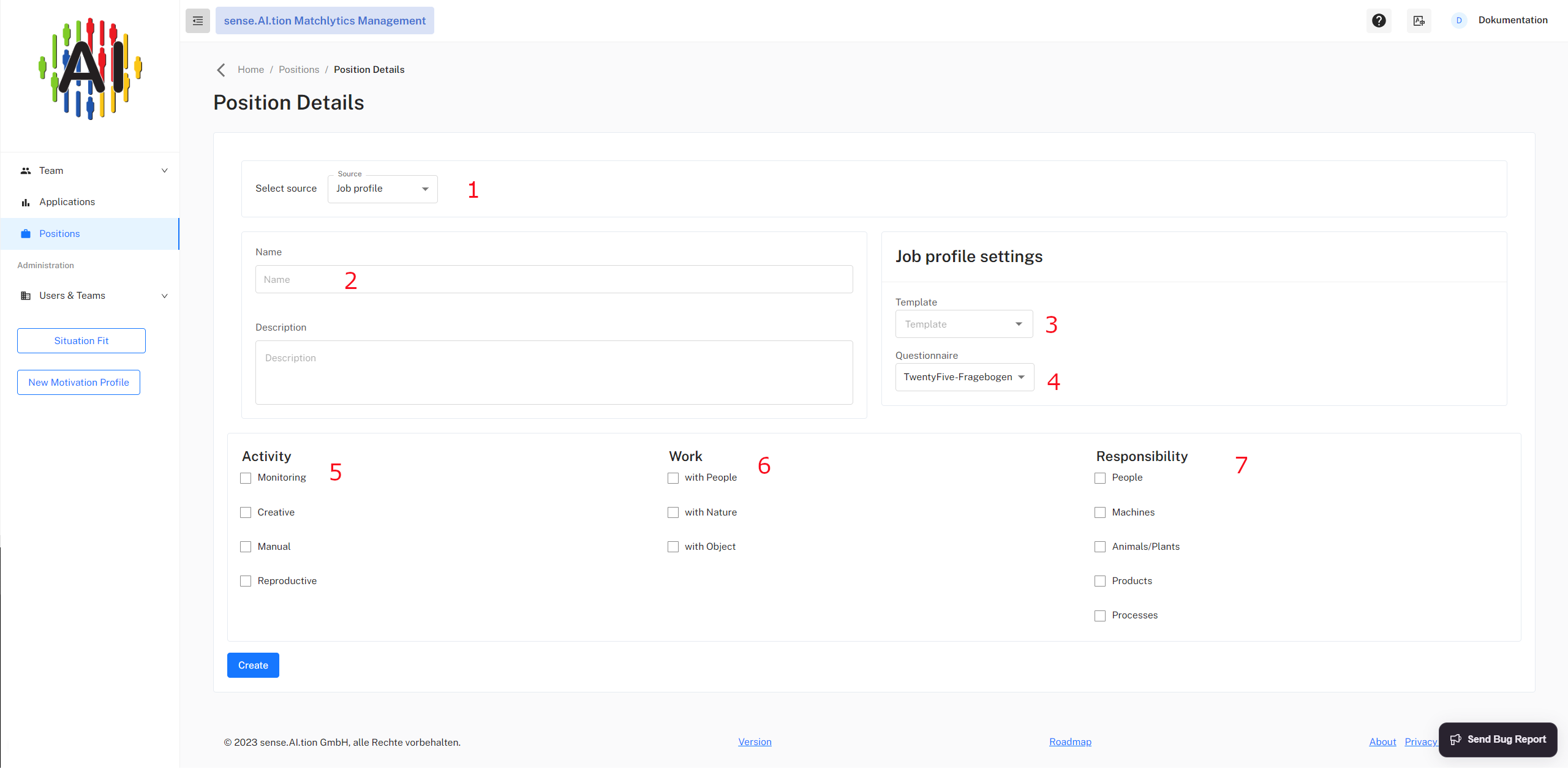
Select a source (1), enter the name of the job description (2), select a template and a questionnaire (3)(4). Use the checkboxes to define activity, work and responsibility (5)(6)(7).
Edit job advertisement
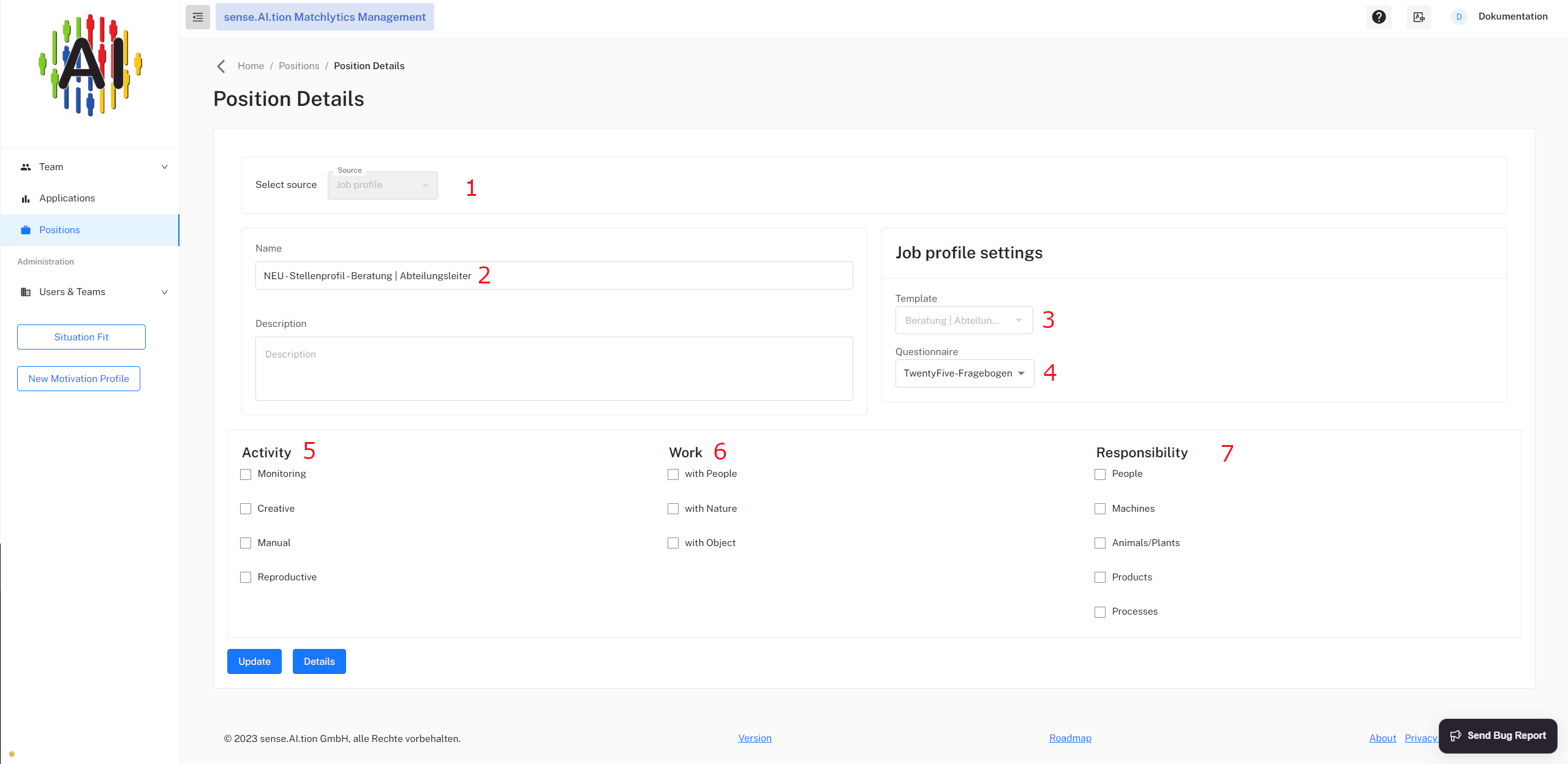
The source (1) cannot be changed. If required, the name of the job description (2) can be changed. The template (3) cannot be changed. The questionnaire to be used can be selected under point (4). The job can now be customised to the expected activities (5)(6)(7). With this job template created, the motivation profiles of the applicants are compared with regard to their match. Save your changes by clicking on ‘Update’.
Filter and project settings
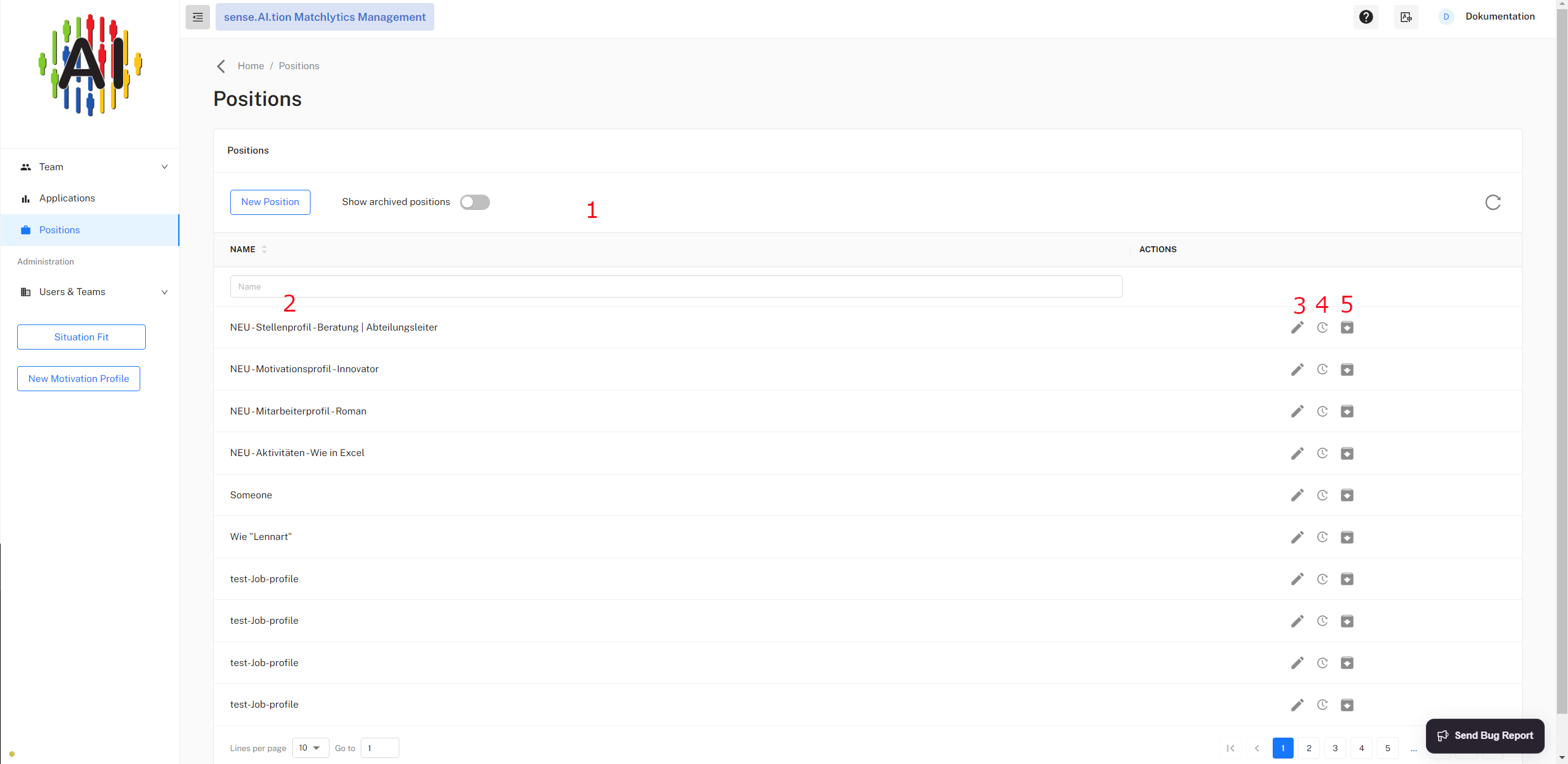
The job advertisement can be edited and renamed after it has been created. The pencil icon (3) can be used to customise the title of the advertised position and the description. The change history can be viewed using the button (4).
Job postings can be filtered by archived and active postings using ‘Filter’ (1). The ‘Name’ filter (2) can be used to search for a specific job.
Archive and restore job advertisement
An active job posting can be archived using the ‘Archive’ button (5). Archived job advertisements are no longer displayed as current.
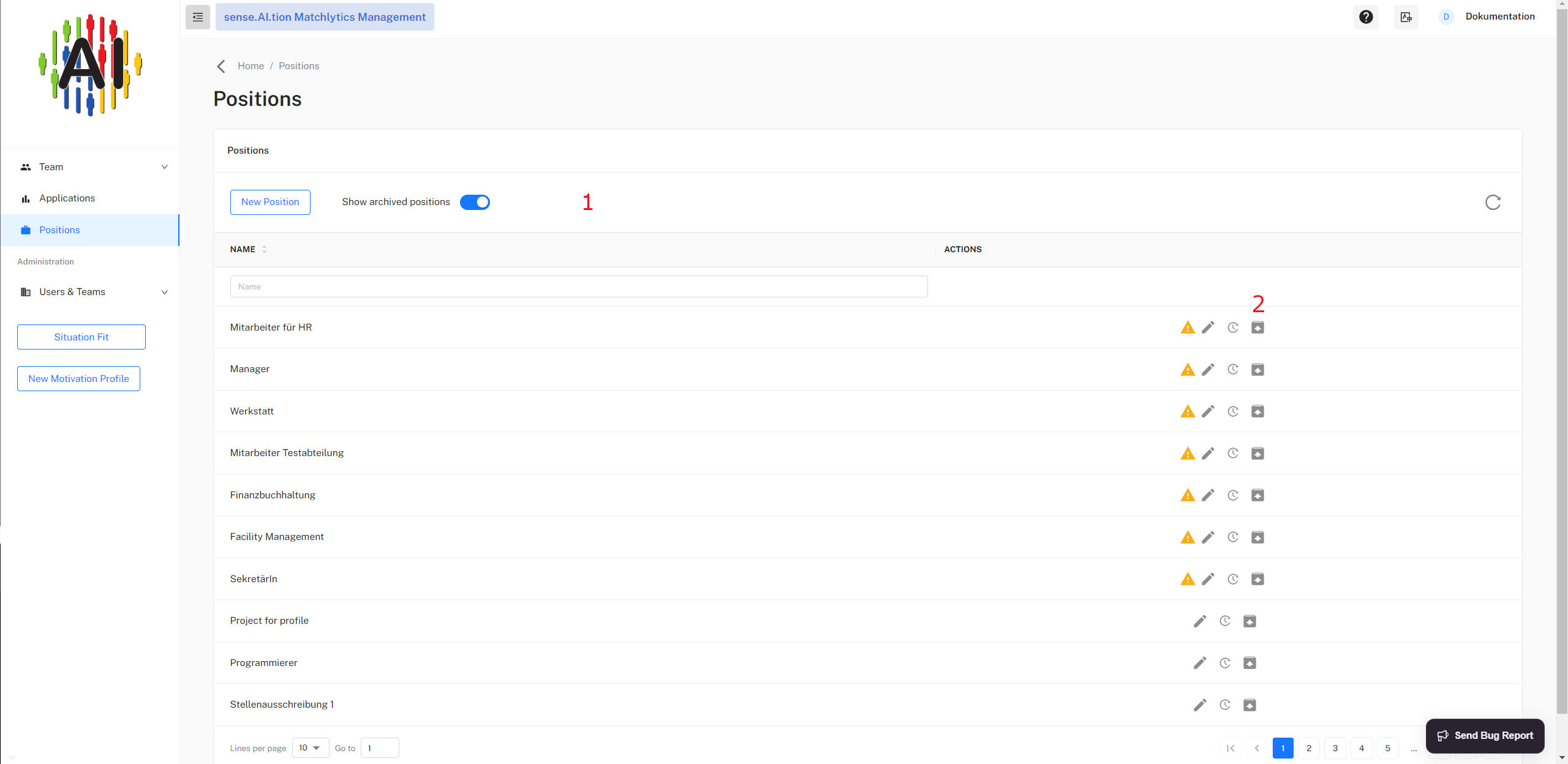
An archived job advertisement can be reactivated using the ‘Restore’ button (2). To do this, the view must be switched using the button (1). The job is then listed again in the ‘Current’ section.