Login
Purpose
Signing in to the Controlboard gives you access to all applications of your company. You sign in with your email address and password, or optionally with Google or Facebook. If you have forgotten your password, you reset it yourself.
Who can see this?
Everyone who has a user account in the Controlboard. The administrator of your company creates the account (see Users). You then set your password yourself.
Layout
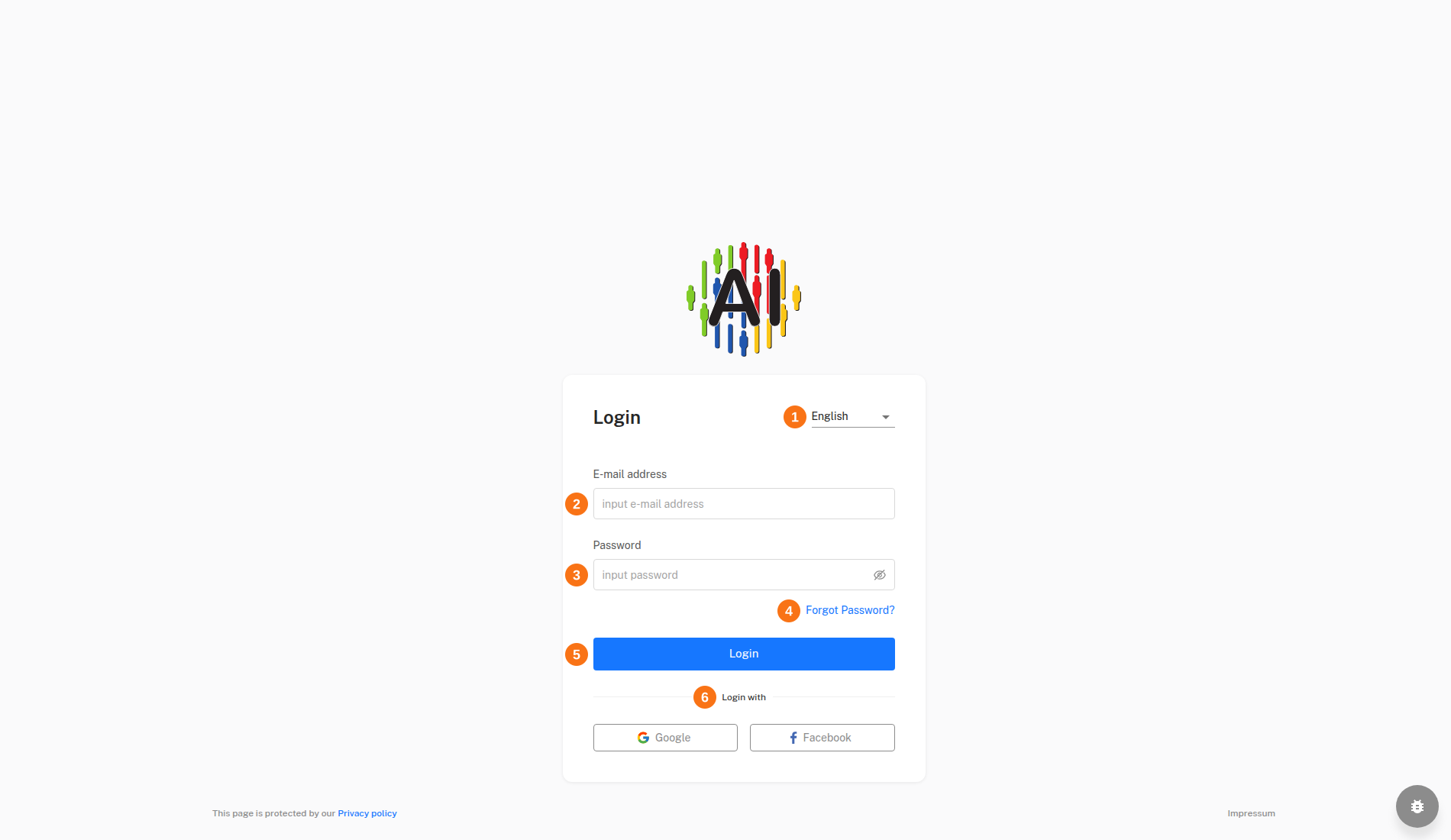
- Language selection – Switches the language of the login page. The choice applies immediately, stays saved in your browser and also determines the language of the email for resetting your password.
- E-mail address – Takes the email address under which your user account was created. The field checks the format of the address before the sign-in starts.
- Password – Takes your password. The eye icon shows it in plain text or hides it again, and the field warns you while Caps Lock is on.
- Forgot Password? – Opens the page where you request a link for resetting your password by email.
- Login – Signs you in with the email address and password you entered. If the details are wrong, an error message appears below the form and you stay on the page.
- Login with – Offers sign-in with an existing Google or Facebook account through the buttons Google and Facebook. A provider’s button only appears if it is enabled for the Controlboard.
Functions
Sign in with email and password
Signing in is the central entry to all applications of your company: you sign in once in the Controlboard and switch from there into the applications without signing in again. The Controlboard checks your credentials with a sign-in service and then loads your user profile and the data of your company. From these it derives your role, the items of the menu and the application cards. If you opened a page of the Controlboard directly, signing in takes you back to it.
- Open the Controlboard.
- Enter your email address in the E-mail address field and your password in the Password field.
- Click Login.
The Applications page opens (see Applications), or the page you had requested before. If your account has access to several companies, the Select Company page appears first; afterwards the Applications page or the page you had requested opens; it is not lost during the company selection. The MatchLytics applications have no login of their own, see MatchLytics-Management › Login and MatchLytics-Assessment › Login. If Caps Lock is on while you enter your password, the warning “Caps Lock is activated!” appears below the field. Use Log out to end the session again.
Choose the language of the login page
The language selection sets the interface language before you are signed in. The browser remembers your choice. When you later switch into an application, the Controlboard passes the language on, so the application opens in the same language. You also receive the email for resetting your password in this language.
- Open the language selection to the right of the title Login.
- Choose one of the languages Deutsch, English, 한국어, Italiano, Suomalainen, Français or Español.
The page switches to the chosen language immediately. You can change the language at any time; the data of your company stays untouched. How interface language and document language differ is explained under Localization and language.
Sign in with Google or Facebook
Instead of a password you sign in with the account of a provider. For this the Controlboard opens a sign-in window of the provider and signs you in once you have confirmed. Everything else works as with email and password: the Controlboard loads your user profile and the data of your company and opens the Applications page. sense.AI.tion enables the buttons centrally for each provider.
- Under Login with, click Google or Facebook.
- Sign in in the window of the provider.
If your browser blocks the window of the provider, the Controlboard shows the message “Pop-up was blocked by your browser. Please allow pop-ups for this site.” Allow pop-ups for the page and try again. If you close the window without signing in, you stay on the login page.
Forgot Password?
You reset a forgotten password yourself, without involving the administrator. The server sends you a link by email for this, in the language of the login page and with the logo of your company, if one is stored. It sends at most three links per address and hour, and the link is valid for ten days. Accounts that sign in only with Google or Facebook, and locked accounts, receive no email.
Step 1: Request the link
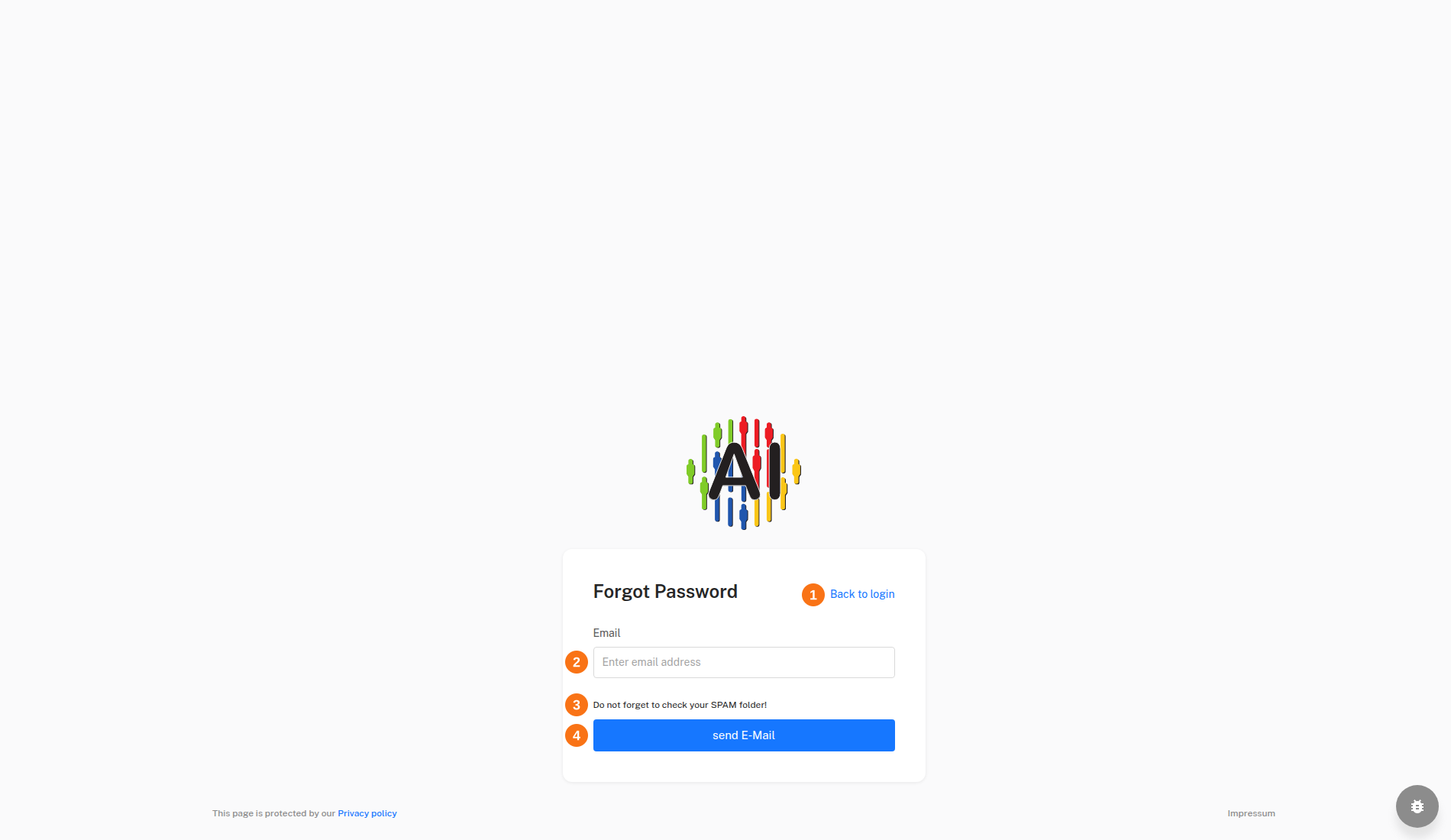
- Back to login – Returns to the login page without requesting an email.
- Email – Takes the address of your account, to which the link goes.
- Note about the spam folder – Reminds you to check the spam folder if the email does not arrive.
- send E-Mail – Requests the link and locks the button so that no second email is created.
On the login page, click Forgot Password?, enter your email address and click send E-Mail.
Step 2: Wait for the email
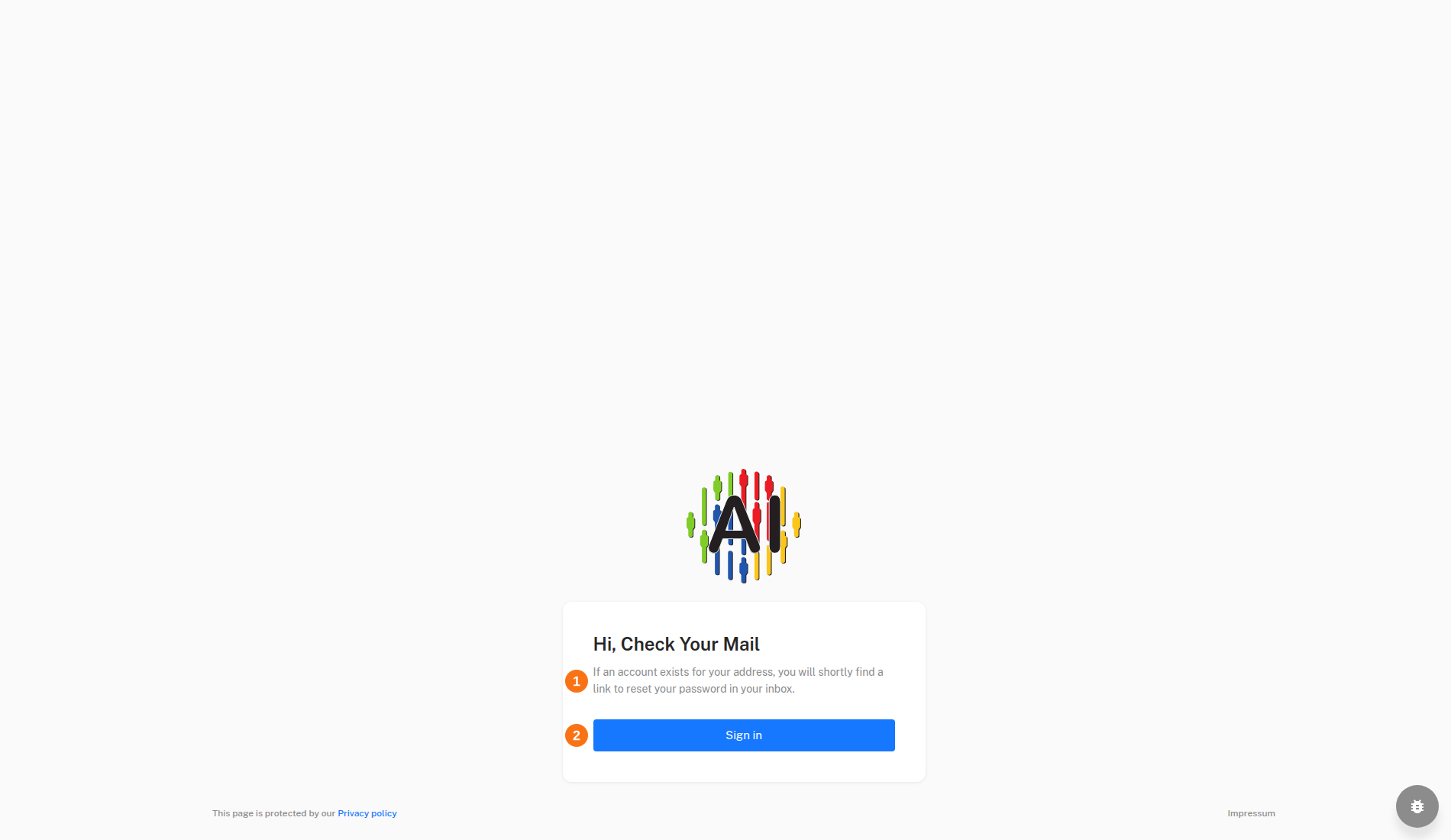
- Note text – Explains that the link only goes to addresses for which an account exists.
- Sign in – Leads to the login page, for example if you remember your password again.
The Controlboard briefly confirms “If an account exists for this address, we have sent you an e-mail with a link to reset your password.” and then shows the page Hi, Check Your Mail. The message is always the same, even if no account exists for the address.
Step 3: Set a new password
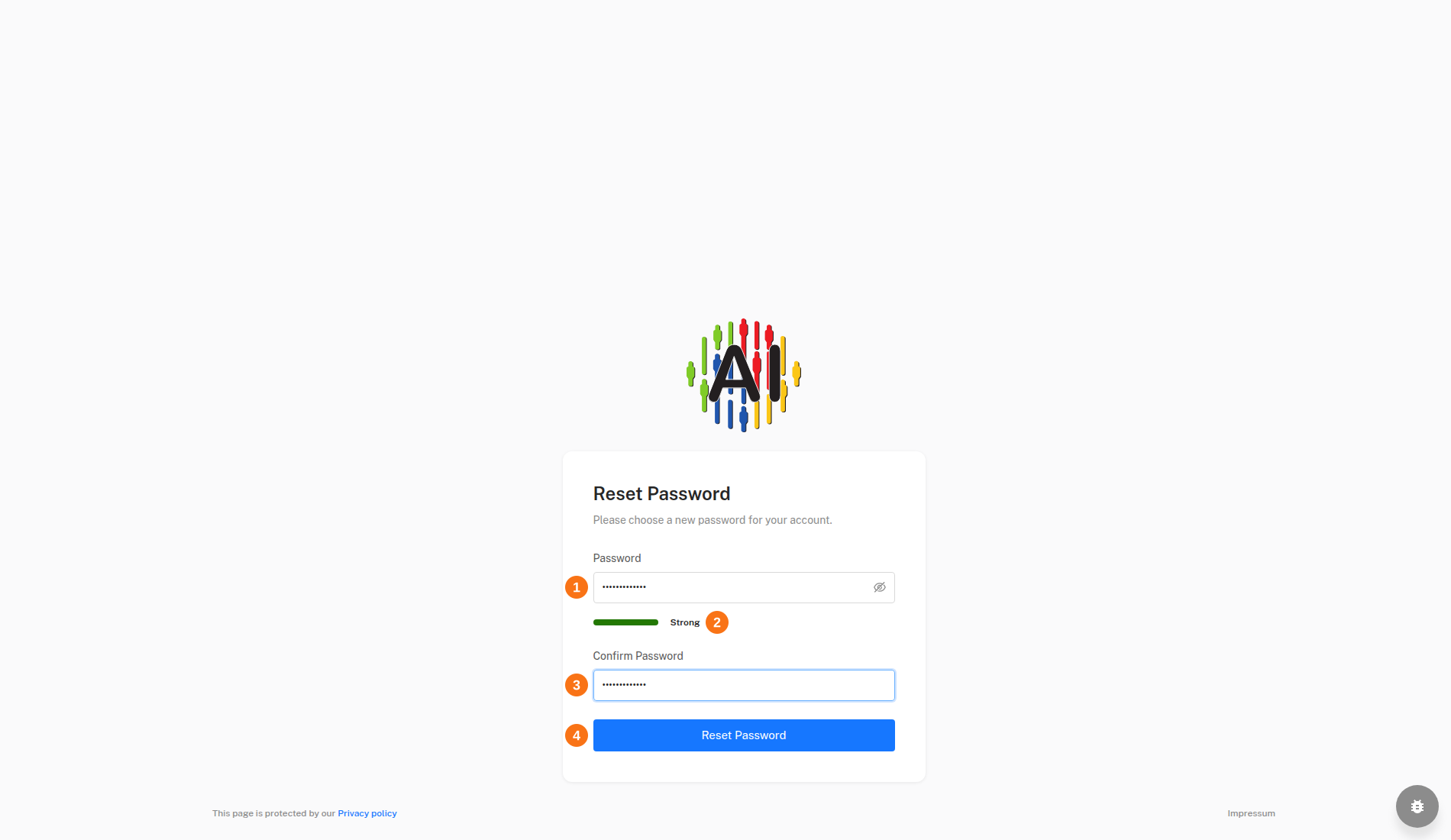
- Password – Takes the new password with at least 8 characters; the eye icon shows it.
- Strength indicator – A bar and a text rate the password from Poor to Strong; only the minimum length is required.
- Confirm Password – Asks for the same password once more and reports differing entries.
- Reset Password – Saves the new password and leads to the login page.
Open the link from the email, enter the password in both fields and click Reset Password. The Controlboard then reports “Password successfully reset”, and you return to the login page.
If the link has expired, is invalid or has already been used, the page shows a matching message; a link can be used only once. Click Request a new link to return to step 1.
Select Company
A user account can be assigned to several companies; the assignment is stored on the account. Your choice on this page determines the company you work in: it decides which applications, users, teams and settings you see, and it also applies to the applications you switch into afterwards. The page appears right after you sign in; later you switch the company in the profile menu.
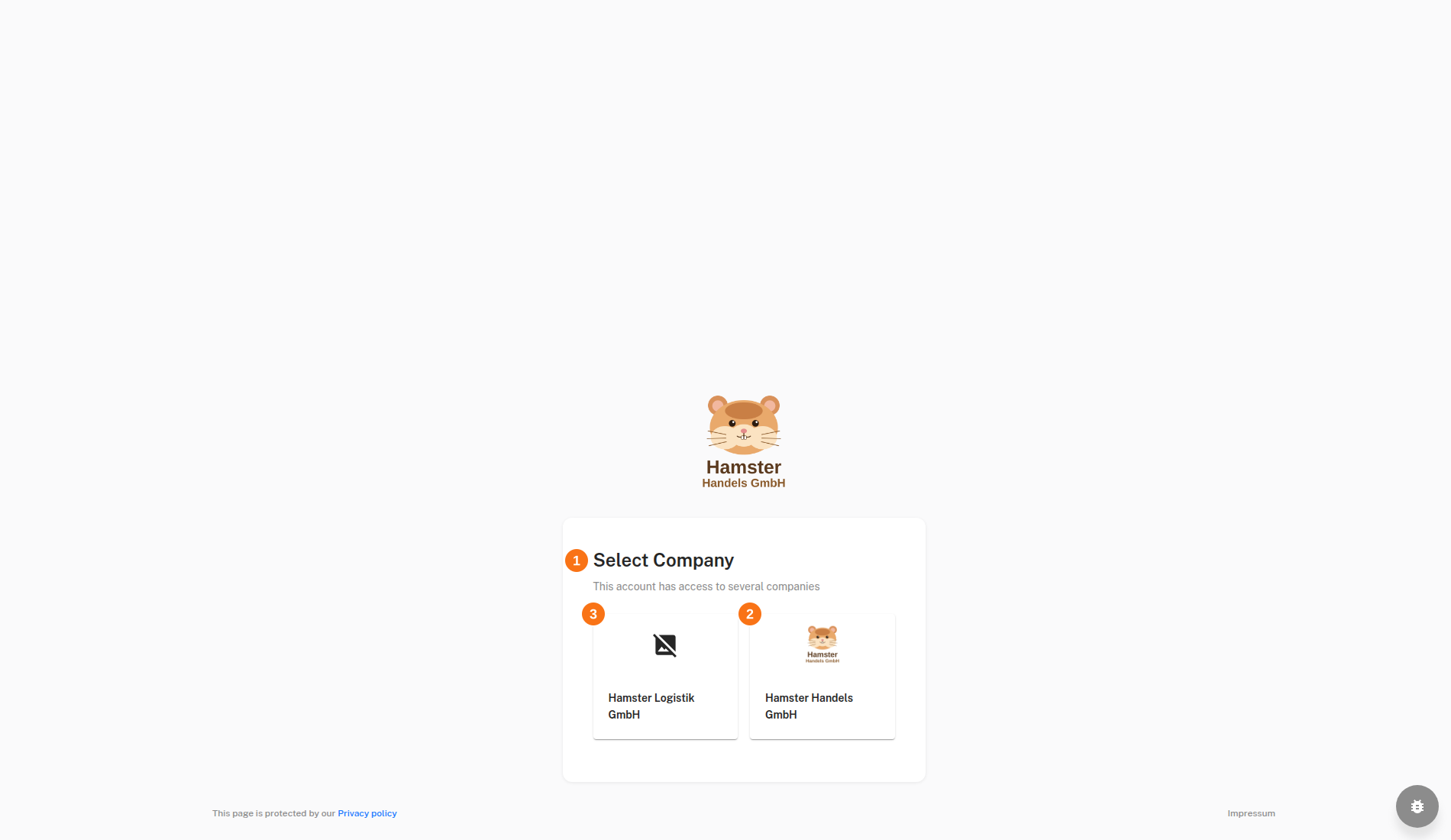
- Title and note text – Name the page Select Company and point out that this account has access to several companies.
- Company card with the logo and the name of the company – Switches into this company when clicked and opens its Applications page. If the company has no logo, the card shows a placeholder icon.
- Further company card – Works like the first card, for a further company of your account. With more than four companies, the Controlboard arranges the cards in three columns.
Click the card of the company you want to work with. The Controlboard opens the Applications page of this company. If the switch is not possible, the message “Switching to this company is not possible!” appears. You can change the choice at any time; how is described under Switch the company.
Sign out
Signing out ends your session in the Controlboard on this device; afterwards every page asks you to sign in again. Applications you have already switched into keep their own session and are not affected. End the session there with the Control Board button in the profile menu of the application (see Applications). Signing out does not change any data of your company.
- Click your name in the header to open the profile menu.
- At the top right of the profile menu, click the sign-out icon. Its tooltip reads Log out.
The login page then opens. You can sign in again at any time.
Notes
The same login applies to all applications: when you switch to an application, you do not have to sign in again (see Applications).
The link in an email from your administrator for setting or resetting the password also leads to the Reset Password page.
Use sense.AI.tion products
If you would like to use products, tools and/or services from sense.AI.tion GmbH, you will find the necessary information on prices, demo access and downloads at sense.AI.tion