Localization and Language
Purpose
The sense.AI.tion applications speak seven languages. The system distinguishes between the interface language (menus, dialogs, labels) and the document language (emails and other documents that the system creates for your company). This page explains where you set which language and when it takes effect.
Who can see this?
- Every user sets the interface language for themselves, including on the sign-in page.
- Only administrators set the document language, under Settings › Customer. It applies to the whole company.
Layout
The seven languages are German, English, Spanish, Finnish, French, Italian and Korean.
| Interface language | Document language | |
|---|---|---|
| Applies to | Menus, dialogs and labels in your browser | Emails and other documents that the system creates, for example reminders and invitations |
| Set it | Language menu in the header; on the sign-in page, the language selection | Settings › Customer, field Language |
| Who | Every user for themselves | Administrator, for the whole company |
| Effect | Immediately | Saved immediately; users who are already signed in pick it up at their next sign-in at the latest |
Functions
Choose the interface language
The interface language determines the language in which menus, dialogs and labels appear in your browser. It is a personal setting: every user chooses it for themselves, and other users see their own language. The Controlboard stores your choice in the browser and takes it up again at your next visit; when you switch to an application, it passes the language on (see Language when switching to an application). It has no influence on emails and other generated documents; the document language applies to those.
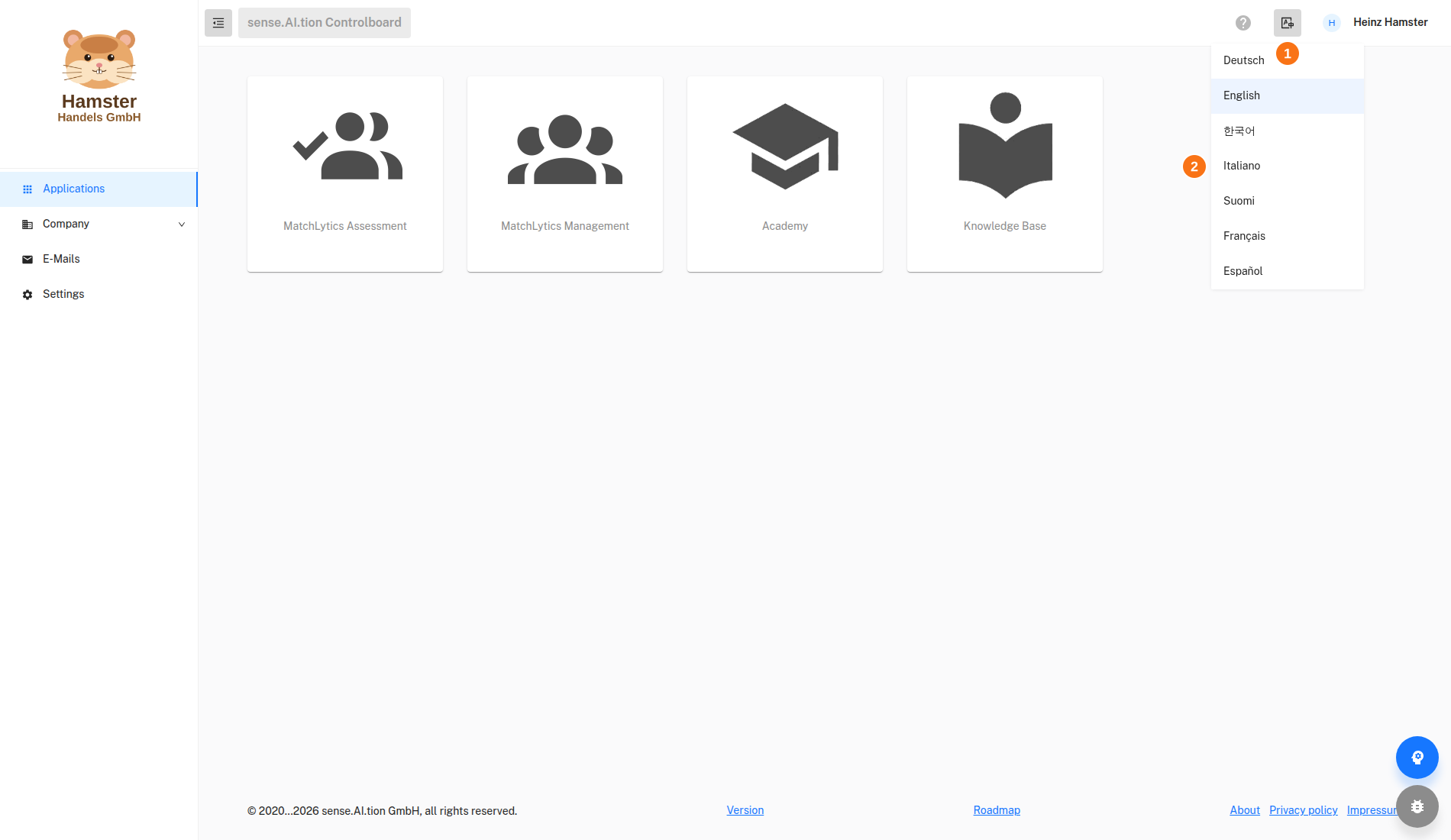
- Language symbol in the header – Opens the list of interface languages. Choosing a language changes menus, dialogs and labels at once, without signing in again.
- List of languages – Names each language in its own name and highlights the current language. It contains all languages for which the Controlboard ships translations.
To change the language of the interface:
- Click the language symbol in the header.
- Choose the language you want. The menu shows each language in its own name.
The interface changes immediately, without signing in again; you can change the choice at any time. On the sign-in page, you choose the language in the selection to the right of the heading. If you have not chosen a language yet, the Controlboard uses the language of your browser; if that language is not offered, the interface appears in English.
Set the document language
The document language is the language in which the system creates texts for your company, above all emails such as invitations and reminders from workflows. It is stored as a setting of the company and applies to all users; without a setting, German applies. An email template with its own language takes precedence, as Language of the template describes. Only administrators change the document language.
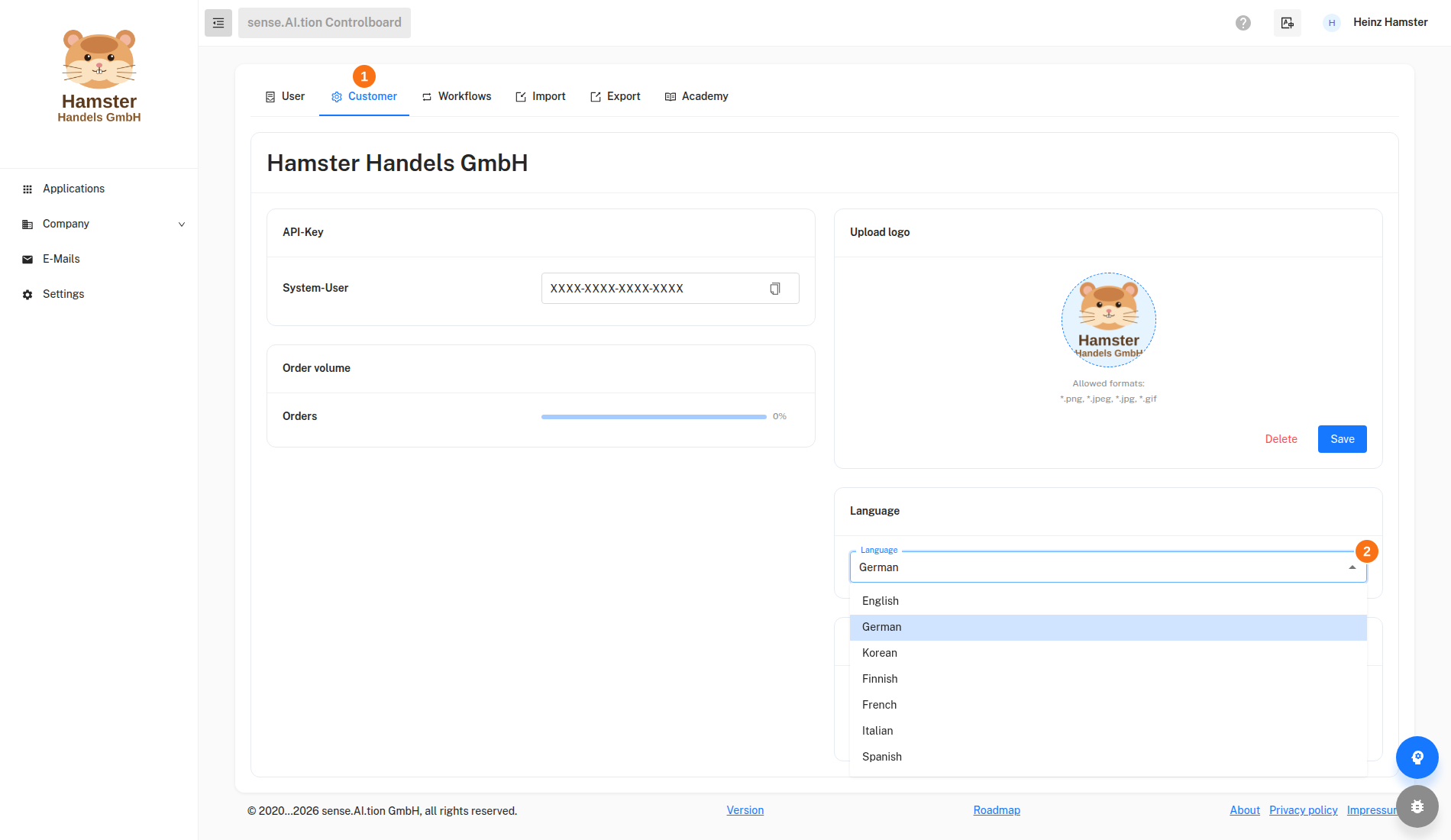
- Customer tab – Contains the settings of your company and is visible to administrators only. What you choose here applies to the whole company, not just to your account.
- Language field – Sets the language in which the system writes emails and documents for your company. The selection is saved at once and does not change the language of the interface.
To set the document language:
- Open Settings › Customer.
- In the Language section, choose the language you want.
- The message “Language changed successfully.” confirms that the setting is saved.
The change affects only emails that the system creates from now on; emails already sent stay unchanged, and no email is triggered. You can switch the language back at any time. The new document language applies to your own session at once. Otherwise the system takes it over at sign-in; if it should also apply to users who are signed in right now, ask them to sign out and sign in again.
Language when switching to an application
The Controlboard is the entry point to all applications. When you switch through the cards on the Applications page, it passes on its current interface language, and the application opens in that language. This applies to MatchLytics-Assessment and MatchLytics-Management; older applications such as Portrait Shop and Call-Assistant do not receive the language. The Controlboard is therefore leading for the language.
In the application you can change the language in the header at any time. This change applies only in the application and leaves the language of the Controlboard and the document language untouched. The next time you switch from the Controlboard, its language applies again.
Language of the PPT exports
PPT exports are the PowerPoint files that MatchLytics-Management and MatchLytics-Assessment create for motivation profiles. When you click the export button, the application passes on its current interface language, and the export is created in that language. Slide templates exist in German and English; for any other language the export is created in English. The document language under Settings › Customer plays no role for PPT exports.
Set the interface language before you export. For another language, switch the interface language and export again. Read more about the exports under PPT exports.
Notes
The instructions for the company language and the logo are under Settings. How email templates determine the language of an email is described under Emails and templates.
Use sense.AI.tion products
If you would like to use products, tools and/or services from sense.AI.tion GmbH, you will find the necessary information on prices, demo access and downloads at sense.AI.tion